> For the complete documentation index, see [llms.txt](https://userguide.zappost.com/llms.txt). Markdown versions of documentation pages are available by appending `.md` to page URLs; this page is available as [Markdown](https://userguide.zappost.com/zap-integrations/zap-post-integrations/ometria/using-zap-events-in-ometria.md).
# Using ZAP Events in Ometria
There are three primary uses for ZAP POST events in Ometria. \
\
1\. **Segmentation** - You can use ZAP POST events and their respective properties to filter customers for segmentation. This could be Customers who who scanned a QR code in the last 30 days could be included in an 'Engaged Customers' segment. \
\
2\. **Reporting** - You can use ZAP POST events and their respective properties to filter customers or actions in a report, for example orders from customers who have received a ZAP in the last 3 months. \
\
3\. **Automated Campaigns** - You can use automated campaigns to target customers who have been rejected or returned from a send in the last 3 months so you can target them via an email campaign.
{% hint style="info" %}
In order to have access to the ZAP POST events in your Ometria account you'll need to ask your Ometria account manager to enable the "ZAP-POST Custom Events Models".
{% endhint %}
### Customer Segmentation
Using the normal data filters available for customer segmentation in Ometria, users can configure static or dynamic segments based on the ZAP POST events available in the platform.\
\
Here you can see the standard ZAP-POST events available to filter.
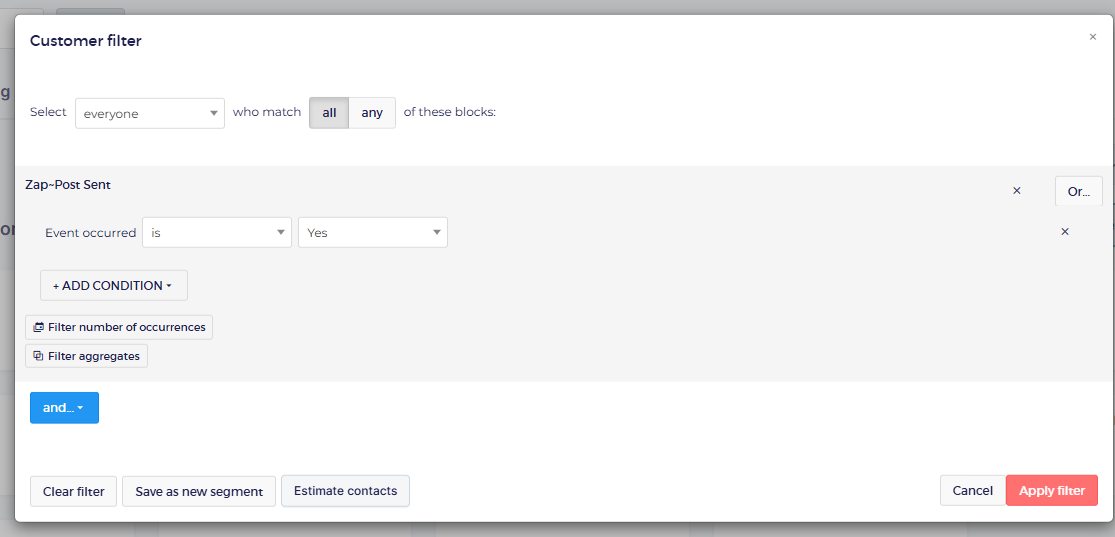
Here you can see we're filtering for customers who have ever had a ZAP Sent event fire.
You can then save this as a static or dynamic segment for further use in Ometria campaigns and reports.
### Reporting
Using the normal data filters available for customer segmentation in Ometria, users can configure static or dynamic segments based on the ZAP POST events available in the platform.\
\
In this example we'll create a report to see orders from anyone who has scanned a QR Code on a ZAP in the last 6 weeks. \
\
1\. Start by selecting the Orders report option in the report creation screen.
2. Scroll down to the custom filters controls
3. If you're using an existing segment then select the segment in the available dropdownlist.
4. If you're building a new segment from scratch select the customer filters and then custom events in the condition options to find the appropriate event for your use case.
5. In this example we're now looking for customers who have scanned a QR Code on the ZAP.
6. Now we'll add the filter for the event date and we should be ready to review
7. Then run the report and view your results.
### Automated Campaigns
ZAP-POST events can also be used as an automated campaign trigger\
\
1\. First we'll start by selecting the ZAP Returned event as the trigger.
2. Now we have any customers who had their ZAP Returned after an attempted delivery we can configure the email
3. The campaign is now ready to be published.
---
# Agent Instructions
This documentation is published with GitBook. GitBook is the documentation platform designed so that both humans and AI agents can read, navigate, and reason over technical content effectively. Learn more at gitbook.com.
## Querying This Documentation
If you need additional information that is not directly available in this page, you can query the documentation by asking a question.
Perform an HTTP GET request on the following URL with the `ask` and `goal` query parameters:
```
GET https://userguide.zappost.com/zap-integrations/zap-post-integrations/ometria/using-zap-events-in-ometria.md?ask=&goal=
```
`ask` is the immediate question: it should be specific, self-contained, and written in natural language.
`goal` is what the user is ultimately trying to achieve, the reason they need the answer. Sharing it helps GitBook give you a better, more relevant answer. A goal is most helpful when it describes the outcome the user wants rather than restating the question. For example, with `ask=how do I create an API token`, a goal like `automate deployments from our CI pipeline` lets GitBook tailor the answer to that use case.
The response will contain a direct answer to the question and relevant excerpts and sources from the documentation.
Use this mechanism when the answer is not explicitly present in the current page, you need clarification or additional context, or you want to retrieve related documentation sections.