# Using the ZAP-POST Designer

The ZAP-POST designer is a tool that allows you to easily create direct mail designs for specific mail campaigns. With the design tool, you can add images, text, customisations, and QR codes to your Zap designs.&#x20;

You can keep your designs on-brand and within your brand guidelines by uploading your own fonts into ZAP-POST. You can also save designs for later; these will be ready to use again whenever they are needed.

### Accessing the Designer

Once on zappost.com, the designer can be accessed from three different pages:

* Home page - <https://www.zappost.com/>
* Design your Zap - <https://zappost.com/design-your-zap/>
* How direct mail works - <https://zappost.com/how-direct-mail-works/>

### ZAP-POST Designer

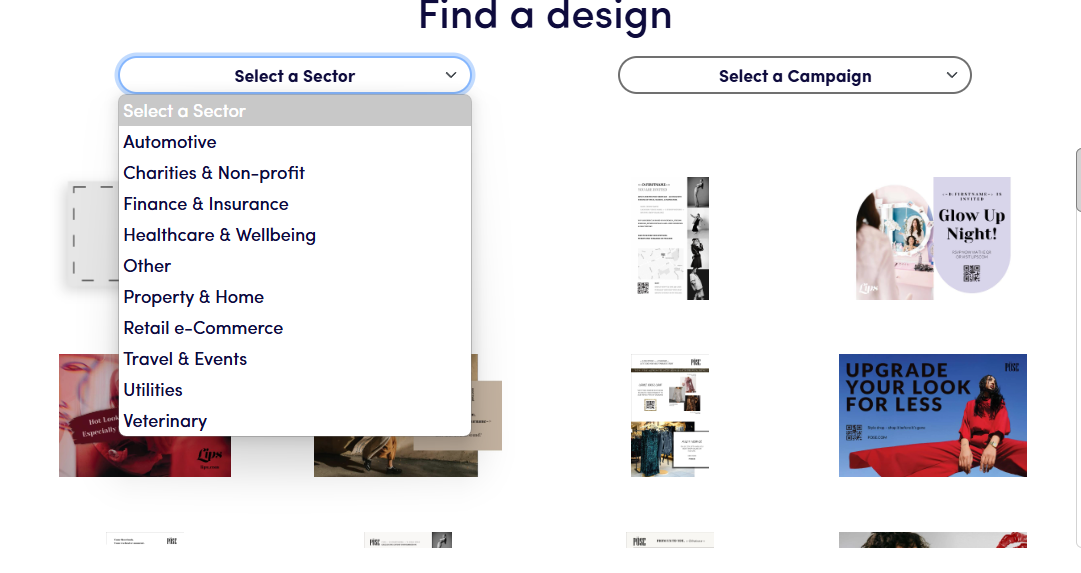
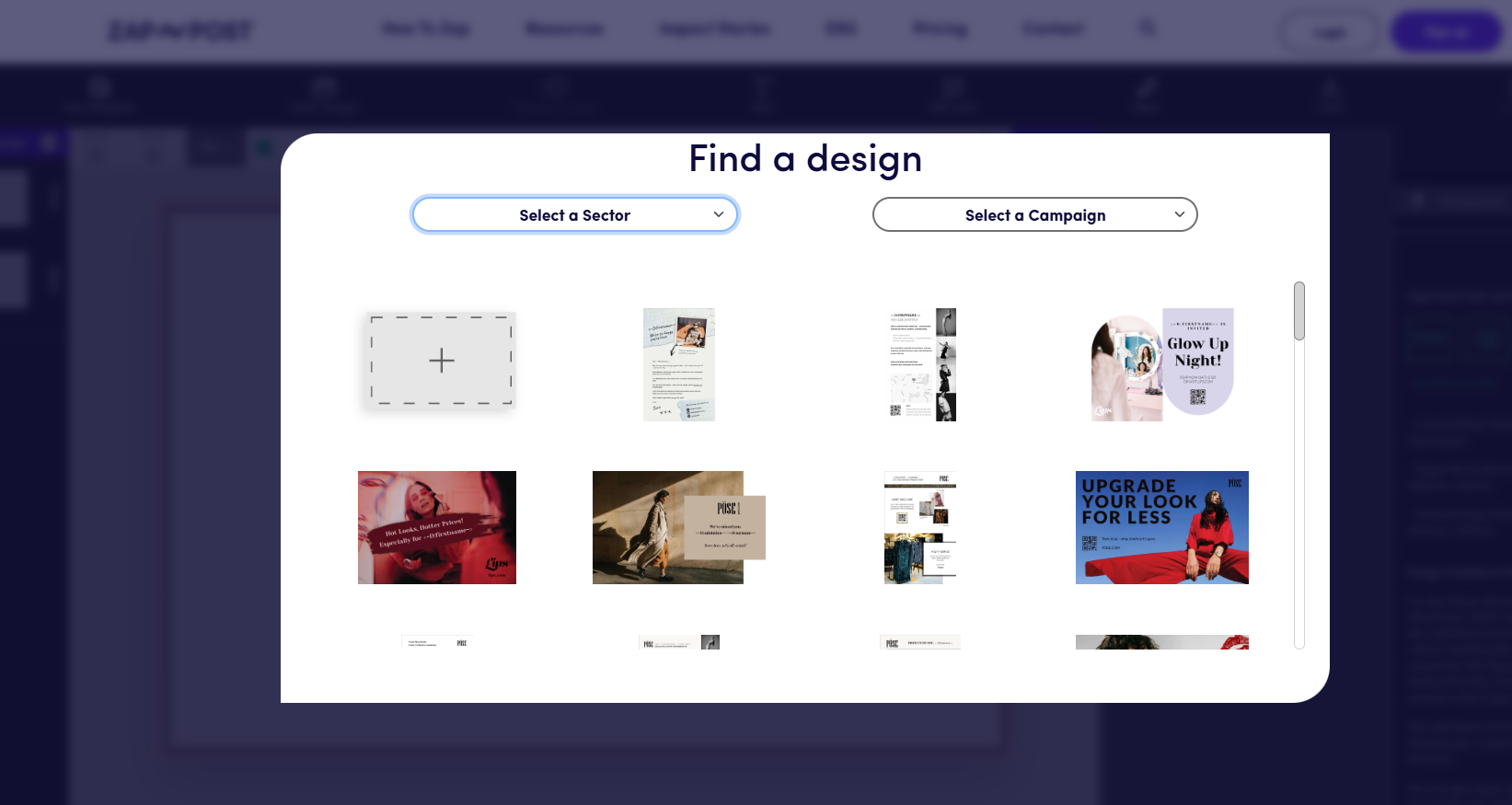
When visiting the designer for the first time, you'll have the option to select one of our premade designs, or to start from scratch.

<figure><img src="/files/K2MqBJSS6dWyqefrWfBA" alt=""><figcaption><p>zappost.com design picker</p></figcaption></figure>

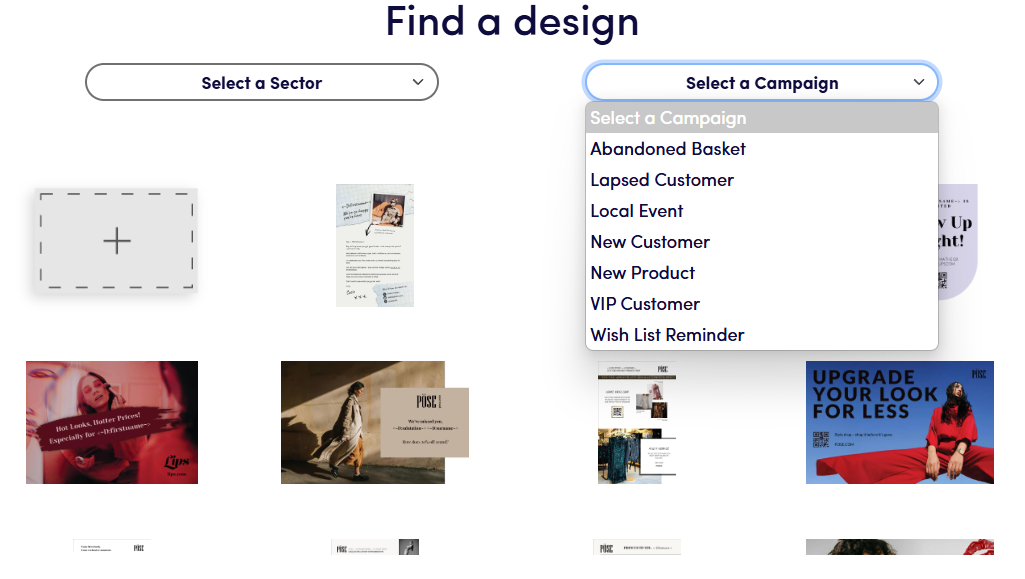
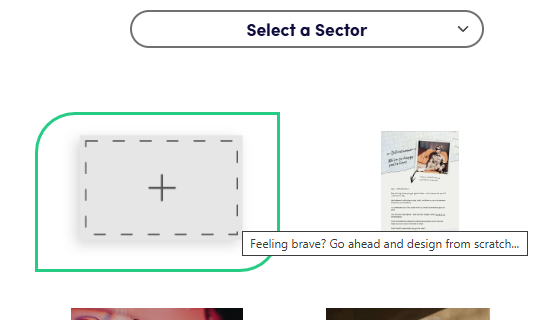
You can filter designs by different sectors or campaign types.

<figure><img src="/files/71ZTQZ48Fku3CIFnm1Xh" alt=""><figcaption><p>Design picker with sector filter selected</p></figcaption></figure>

<figure><img src="/files/B5YVhU0aDYytei2B9dh9" alt=""><figcaption><p>Design picker with campaign filter selected</p></figcaption></figure>

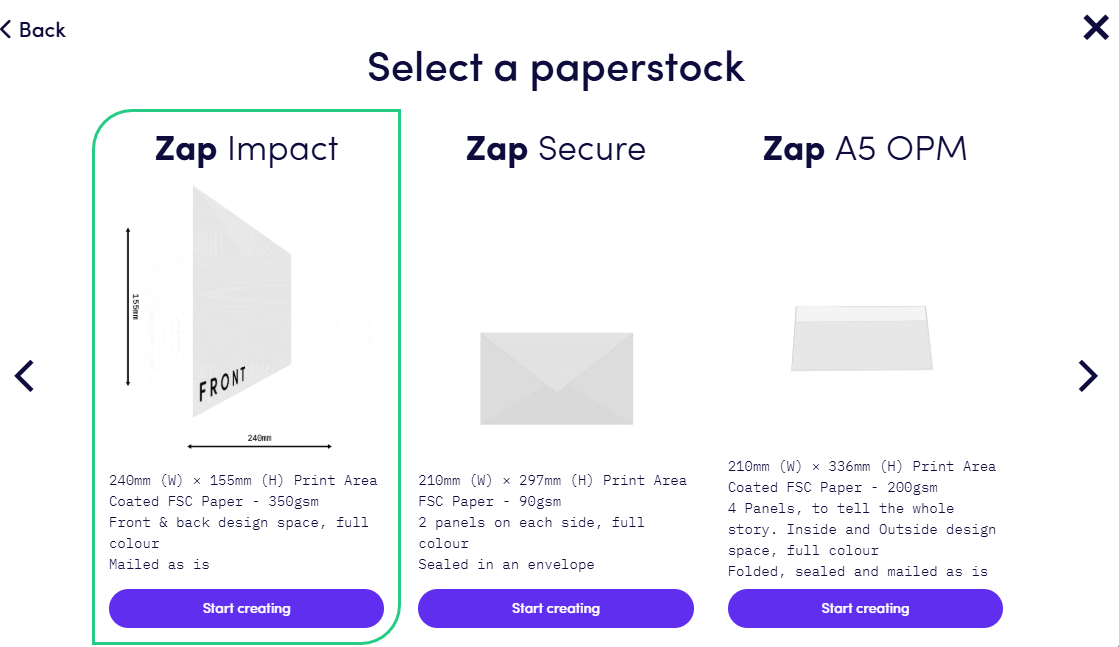
To start from scratch, select the blank template

<figure><img src="/files/Rp0enKTPMpcfohatXWAN" alt=""><figcaption><p>Design picker with the blank template selected</p></figcaption></figure>

### Start from scratch

If you do choose to start from scratch, you'll then have the option to select which paperstock you would like. For more information on our paperstocks and to download a template, see our academy [here](https://zappost.com/academy/lessons/zap-post-template-downloads).

<figure><img src="/files/yAYeZ8cvCHq1i4RFGo8M" alt=""><figcaption><p>Paperstock selector</p></figcaption></figure>

### Printer's Marks

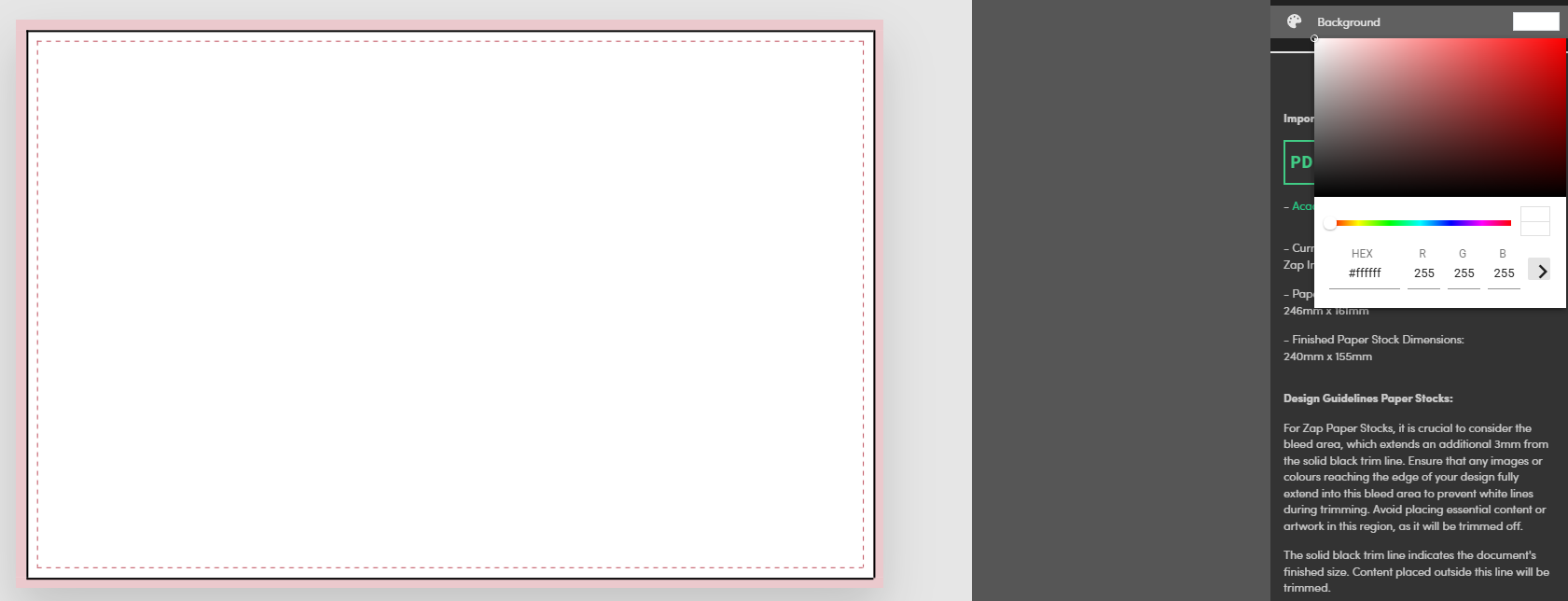
Depending on the paper stock you have chosen for your campaign, there will be a number of different lines shown on your canvas. Simply put, these lines are quality control methods that help to achieve the professional print and finish your designs deserve.

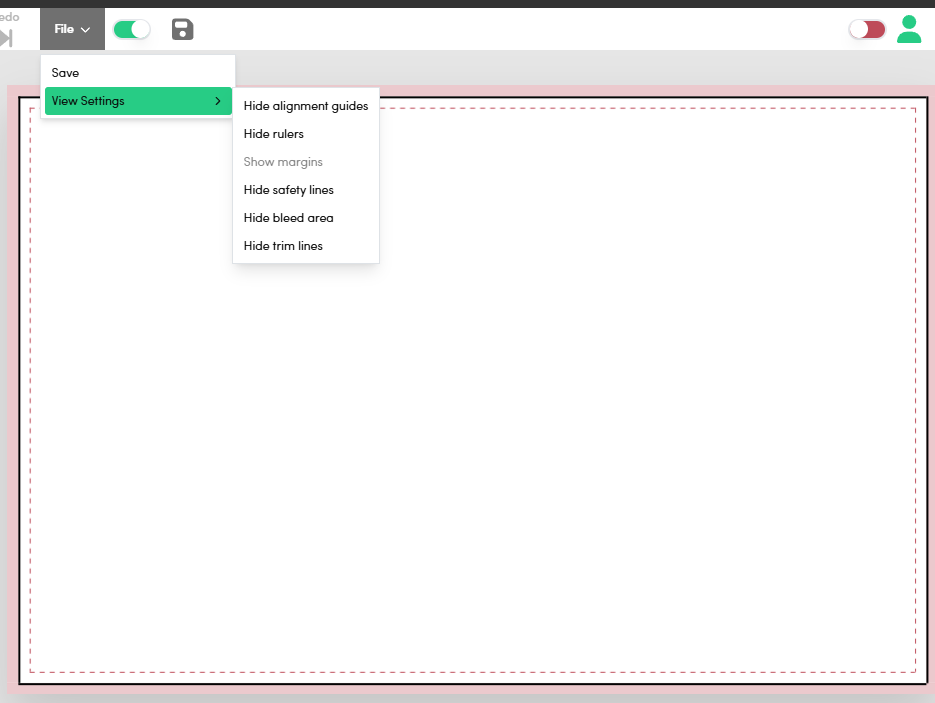
The visibility of these lines can be turned on/off using the view settings submenu.&#x20;

<figure><img src="/files/Fy88ifBvzhTlP2jYZlg2" alt=""><figcaption><p>The safety line, trim line and bleed area printers marks shown on a Zap Impact Campaign</p></figcaption></figure>

There are 3 key printer's marks shown on the Impact, Mini and Secure paper stocks:

1. **Bleed area** - The **red-shaded bleed area** extends out an extra 3mm from the solid black trim line. All images or colour that print to the edge of your design should be fully extended into this area to avoid the chance of white lines appearing. This will ensure that when trimmed, your design is printed edge to edge. Make sure not to place any important content or artwork elements in this area, as it will get trimmed off.
2. **Trim Line** - The **solid black trim line** shows the finished size of the document. Anything placed outside of this area will be trimmed off.
3. **Safety Line** - We recommend that no text or barcodes are placed outside the **red dashed safety line**, as anything placed outside of this box will risk being cut off.&#x20;

### Postage and Returns Management Areas

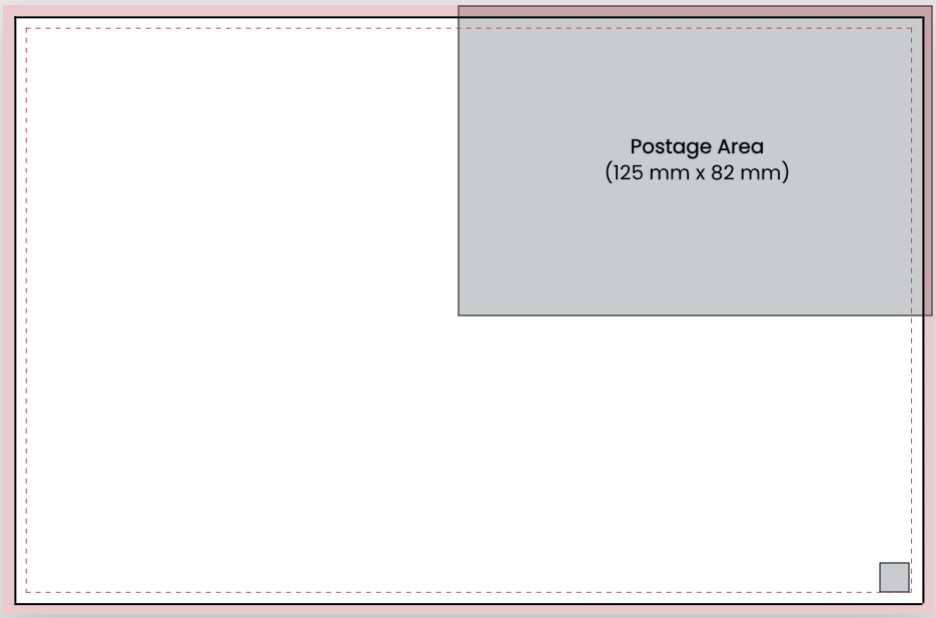
The grey, un-editable boxes shown on the canvas are for the postage and returns management areas. Text and barcode widgets can be placed in these areas but they will become opaque and you'll be presented with a warning. Any images placed in these areas will sit behind a white box outline of the area when printed.

<figure><img src="/files/VS3k69a1Y29LxKiNeHuV" alt=""><figcaption><p>Postage area (top right) and Returns management area (bottom right) shown on a Zap Impact Campaign</p></figcaption></figure>

### Assets

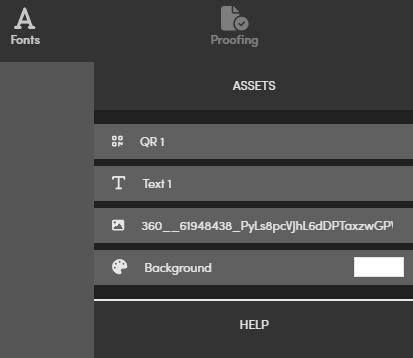
Using the asset bar shown below, you can add a number of different assets to your Zap designs. ZAP-POST assets may include the following media types:

* [Static Images](#static-images)
* [Dynamic Images](https://userguide.zappost.com/zap-post-user-guide/zapp/using-the-zapp/design/dynamic-images)
* [Text](#text)
* [Variable Text](#variables)
* [QR Codes](#qr-codes)
* [Custom Fonts](#fonts)

<figure><img src="/files/JHDW8q8stPJ8InIFZsTO" alt=""><figcaption><p>ZAP Designer asset bar</p></figcaption></figure>

You can use the asset explorer on the right of the designer screen to select, rename, reorder and delete assets.

<figure><img src="/files/6ccAL2AN8SDzx7rw6yvM" alt=""><figcaption></figcaption></figure>

{% hint style="info" %}
Static Images and Custom Fonts are restricted to three unique uploads.

Dynamic Images are completely restricted

\
All assets and completely unrestricted when creating an account
{% endhint %}

### Duplicating Assets

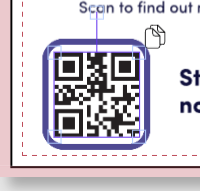
Assets can be duplicated by either using CTRL C and then CTRL V, or by clicking the duplicate asset icon. This is useful when you might want to preserve the formatting of an asset, rather than starting from scratch on a new asset with default formatting.

<figure><img src="/files/4grIhG4vRLxPNWIEiH5F" alt=""><figcaption><p>Duplicate asset icon shown at top right of QR code asset.</p></figcaption></figure>

### Static Images <a href="#static-images" id="static-images"></a>

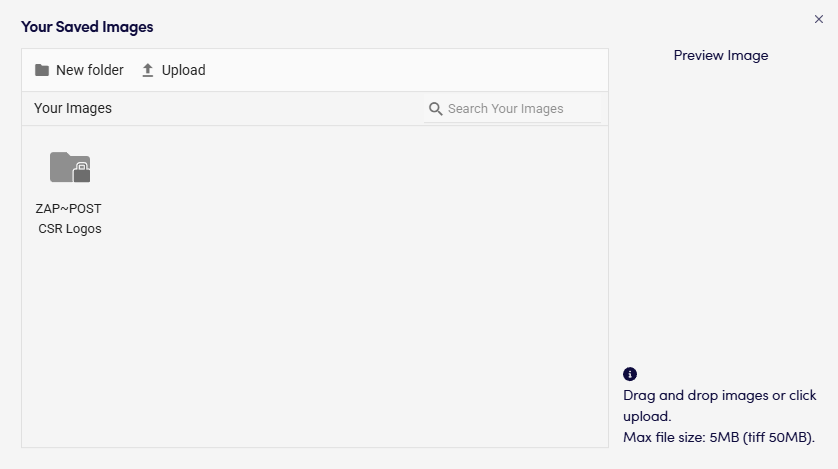
Clicking the static image icon will open the static image window.

Using the static image tool, you can click ‘upload’ to add up to 3 files at once. Accepted formats are jpeg, jpg, png, pdf and tiff. Files can be up to 5MB in size, however, tiff files can be up to 50mb.

These uploaded images are added to your static image library where you can access them at any time.

You can delete any unwanted images from your image library by selecting them and then clicking ‘delete’. You can also create folders in your static image library to organise your images.

<figure><img src="/files/3YcRXkcgVcUyJJ9IeLf2" alt=""><figcaption><p>The ZAP Designer Static Image explorer</p></figcaption></figure>

To add an image into a Zap design, select it in the static image window then select ‘choose’. When an image has been added to the design, you can use the handles on the sides of the image to resize or rotate the image to your preferred size & position.

{% hint style="info" %}
**Drag & Drop uploads -** drag and drop one or more images into either your static assets folder, or straight onto your canvas when uploading them.
{% endhint %}

### Text <a href="#text" id="text"></a>

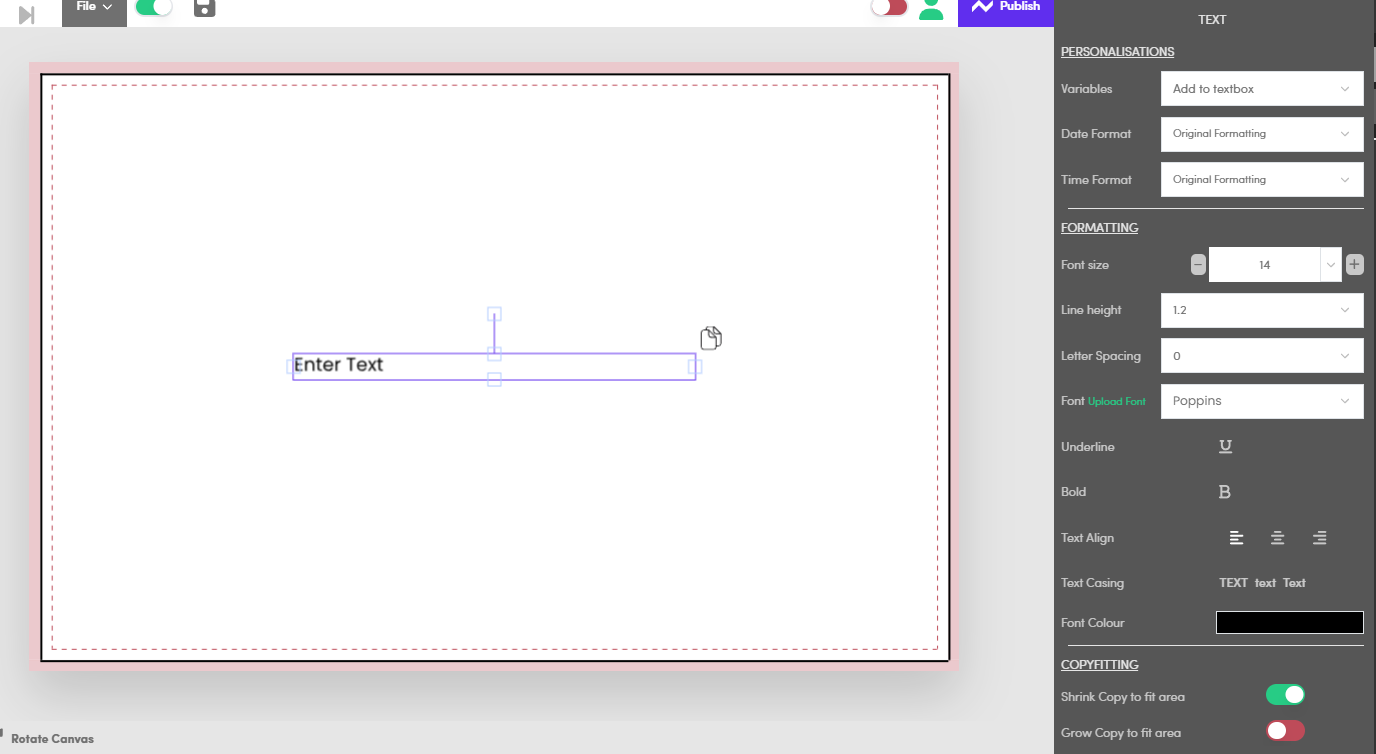
By clicking the text icon, a text box will be added to the centre of a Zap design. You can use the handles on the sides of the text box to resize and reposition it.&#x20;

Select the box to view the text controls in the sidebar. There are two controls worth mentioning here: variables and copy fitting.

<figure><img src="/files/2p17YaKETbtwzKDixQsj" alt=""><figcaption><p>Adding Text with the ZAP-POST Designer</p></figcaption></figure>

### **Variables**

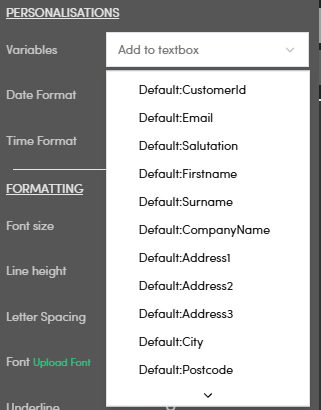
This is how you add personalisation to your Zap designs. Select from the dropdown list to choose a personalisation.

When inserted into the design, a placeholder text will appear, this will look similar to ‘<\~D:firstname\~>’. When you upload your recipient data to ZAP-POST, any personalisations will be replaced with the relevant field from your data.

To preview how personalisations will look, you can toggle the preview personalisation to swap out the placeholder example data. By toggling this on you can then cycle through different sets of example data.

<figure><img src="/files/wWr09R6pnOq9RvVs3tGC" alt=""><figcaption></figcaption></figure>

### **Date and Time Format**

Along with customisation and variables, you can specify the date and time format that's displayed on their designs.

If the data contains a date or time as a custom field, you can select from the below.

**Date Formats:** \
Original Formatting \
MM/DD/YYYY - 12/25/2023 \
DD/MM/YYYY - 25/12/2023 \
Month DD YYYY - December 25 2023 \
DD Month YYYY - 25 December 2023 \
\
**Time Formats:** \
Original Formatting \
24 Hour - 13:00 \
12 Hour - 1:00pm

### **Copy Fitting**

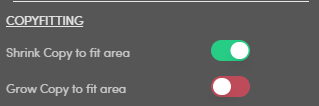
This is directly related to Variables. If using a personalisation that potentially has different lengths of data (eg. a first name), copy fitting will ensure that the text will be automatically resized to still fit inside your text box. There are two types of copy-fitting:

1. Shrink Copy to fit area - this will decrease the font size to make the text fit inside the text box if it is too long.
2. Grow Copy to fit area - this will increase the font size to make the text as large as it can be within the text box.

'Shrink copy to fit area' is turned on by default, but both of these settings can be toggled on and off using the toggles.

<figure><img src="/files/26k9JIYHbZhBxP2gb2Jo" alt=""><figcaption><p>ZAP-POST Designer Copy Fitting toggles</p></figcaption></figure>

### QR Codes <a href="#qr-codes" id="qr-codes"></a>

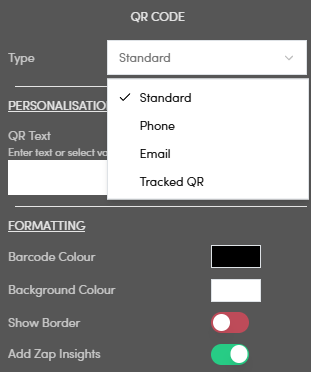
QR codes can be inserted into any design by clicking on the QR code icon. When added to your design, you have four options to select from, Standard, Phone, Email and Tracked QR.

<figure><img src="/files/nvF1g5SmnRQTVPVHGcNE" alt=""><figcaption></figcaption></figure>

**Standard QR**

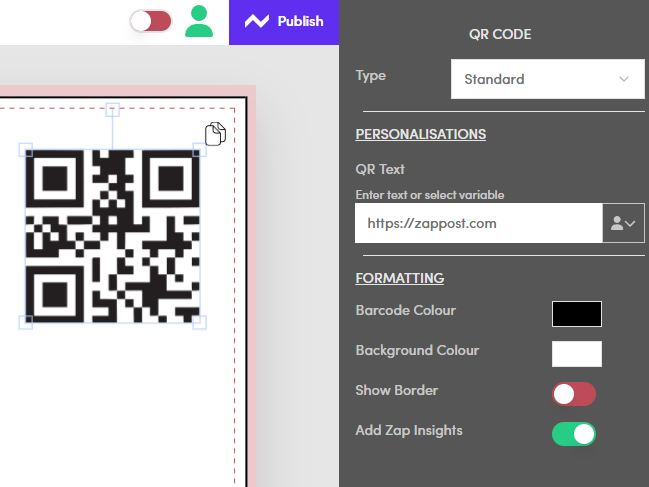
There are two options when defining a URL for the QR code. You can either choose a customisation that will use a URL stored within your data, or you can manually enter a URL using the text box field in the QR Code control sidebar. You can select the barcode colour along with the background colour and set a transparency for the background.

<figure><img src="/files/gBXwFYaMJAV0XWHBHYSY" alt=""><figcaption></figcaption></figure>

{% hint style="warning" %}
A word of warning: QR Codes will only scan when there is enough contrast between them and the background. Make sure that your QR code is sat on a white box or on a light colour background to ensure it will work as intended. A QR code must also be at least 2cmx2cm in size to scan successfully.
{% endhint %}

**Phone QR**

When selecting phone, you can either use a customisation found in your data or enter a fixed number. when this is scanned on a mobile device, that users phone will automatically start a call phone call to the number entered.

**Email QR**

When selecting email, once again, you can use customisations or enter the email address, subject and bodt text manually. When this is scanned, that user will automatically compile an email using the stating subject and body.

**Tracked QR**

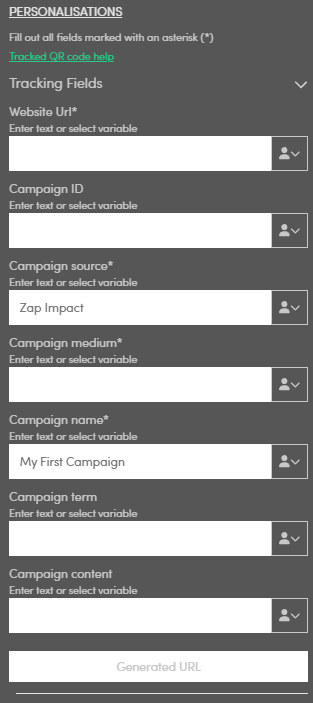
If you select 'Tracked QR' from the drop down, you'll be shown a list of fields to populate, this will then create a UTM tracking URL for a Google Analytics campaign.

**Website URL** - the full website to direct your customers to (e.g. <https://www.zappost.com>) \
**Campaign ID** - used to identify which adds campaign this referral references. Use **utm\_id** to identify a specific ads campaign. \
**Campaign Source** - use **utm\_source** to identify a search engine, newsletter name, or other source. **Campaign Medium** - use **utm\_medium** to identify a medium such as emails or cost-per-click **Campaign Name** - used for keyword analysis. Use **utm\_campaign** to identify a specific product promotion or strategic campaign \
**Campaign Term** - used for paid search. Use **utm\_term** to note the keywords for this ad. \
**Campaign Content** - used for A/B testing and content targeted ads. Use **utm\_content** to differentiate ads or links that point to the same URL.

<figure><img src="/files/FVRy7KvmHkF4NjL5lTDg" alt=""><figcaption></figcaption></figure>

### **Adding ZAP Insights to QR Codes**

QR Code usage can be easily tracked using ZAP-POST. By turning on the 'Add ZAP Insights' toggle switch, you can measure how many scans you receive from your Zap submission.

When you have turned on ZAP Insights for QR codes, the scans will be recorded and grouped according to the submission the Zap was a part of. \
\
You can download a CSV of which recipients have scanned a QR code using the 'QR Code Tracking' download button in the furthest right column of the table on the Zap Processing screen. You can also view the QR scan data in the graphs shown on the[ insights page](https://userguide.zappost.com/zap-post-user-guide/zapp/using-the-zapp/insights).

### **Fonts**

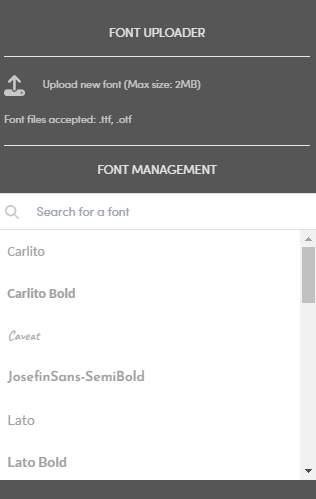
With ZAP-POST, you can upload custom fonts for use in your ZAP designs. To do so, you should first select the ‘fonts’ icon from the asset bar to navigate to the font management area. \
\
From here, you can upload fonts in either .ttf or .otf file formats. You can view, edit or remove their existing custom fonts. Any fonts uploaded will be available to use in the text editor tool.

<figure><img src="/files/UiHx6aKh2DvQ3YCAVeyA" alt=""><figcaption></figcaption></figure>

### Background Colour <a href="#background-colour" id="background-colour"></a>

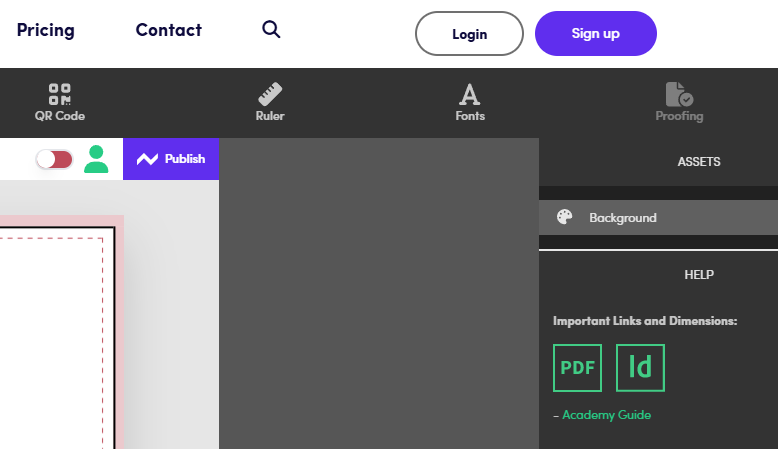
You can select a background colour for your design. On the right hand side under assets you will see an option called background. There are multiple ways you can choose your colour,\
\
RGB value \
HEX value\
HSV value

<figure><img src="/files/d4YIDSXeaVUynwl7Z3Sx" alt=""><figcaption></figcaption></figure>

### Saving Designs

There are two reasons you will want to save your design:\
\
1\. To be able to come back later and amend them\
2\. If you sign up to an account, the design will be waiting for you in the ZAP APP

Saving you design is easy, click 'file' and then 'Save' or click on the save icon in the designer.

### **AutoSave**

The Auto Save feature ensures that your work is continuously saved after every change you make, providing a safety net against unexpected disruptions or crashes.

You have the flexibility to toggle the Auto Save feature on or off, based on your preference and workflow. To turn autosave on, click the toggle next to the save icon in the designer.

<figure><img src="/files/kc7M8vyntdlPiYUNcV1N" alt=""><figcaption></figcaption></figure>

Autosave will be turned on by default when you create a campaign. If you have not yet saved a design for that campaign, then autosave will create a file for you. This file can be found in your saved designs folder in the Zap Designer accessed from the file dropdown menu.

### Create an account

When you're happy with your design, and you've saved your changes, you can create an account by clicking Sign up

<figure><img src="/files/ccyXw5GUnssuJeO8tQDz" alt=""><figcaption></figcaption></figure>

For more detailed information on creating an account, see our [Sign up guide](https://userguide.zappost.com/zap-post-user-guide/zapp/sign-up)


---

# Agent Instructions: Querying This Documentation

If you need additional information that is not directly available in this page, you can query the documentation dynamically by asking a question.

Perform an HTTP GET request on the current page URL with the `ask` query parameter:

```
GET https://userguide.zappost.com/zap-post-web-app/zap-post-user-guide/zappost.com/using-the-zap-post-designer.md?ask=<question>
```

The question should be specific, self-contained, and written in natural language.
The response will contain a direct answer to the question and relevant excerpts and sources from the documentation.

Use this mechanism when the answer is not explicitly present in the current page, you need clarification or additional context, or you want to retrieve related documentation sections.