> For the complete documentation index, see [llms.txt](https://userguide.zappost.com/llms.txt). Markdown versions of documentation pages are available by appending `.md` to page URLs; this page is available as [Markdown](https://userguide.zappost.com/zap-integrations/zap-post-integrations/bloomreach/populating-bloomreach-with-zap-post-events/installation-guide.md).
# Installation Guide
This guide walks you through connecting Bloomreach Engagement to ZAP-POST.
### Prerequisites
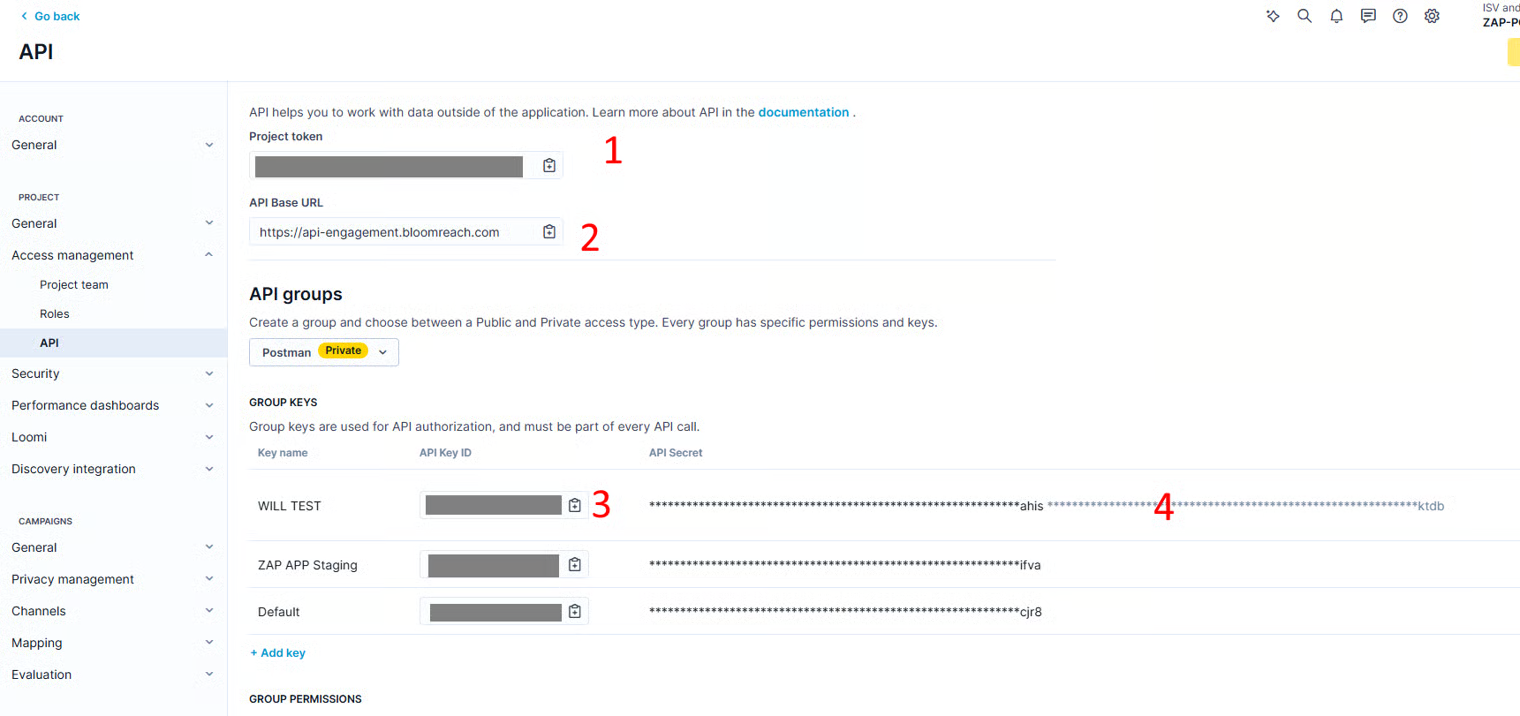
You’ll need these values from Bloomreach:
1. Project token
2. Project ID (if shown separately)
3. API base URL
4. API key ID
5. API secret
If you don’t see a separate Project ID in Bloomreach, you can skip it.
{% hint style="warning" %}
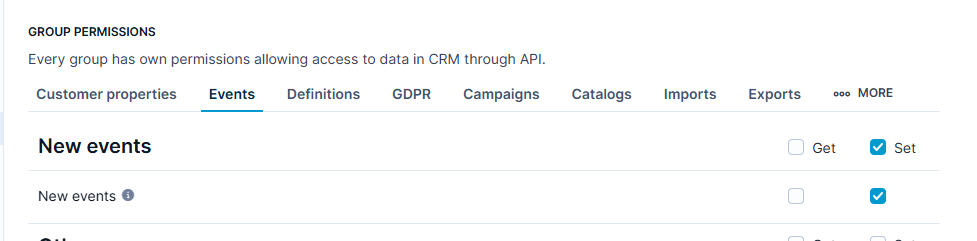
Your Bloomreach API key must have permission to create new events.
{% endhint %}
### Get your Bloomreach API credentials
1. Sign in to Bloomreach Engagement: .
2. Open `Settings` and select `Project settings`.
3. Go to `Access Management` → `API`.
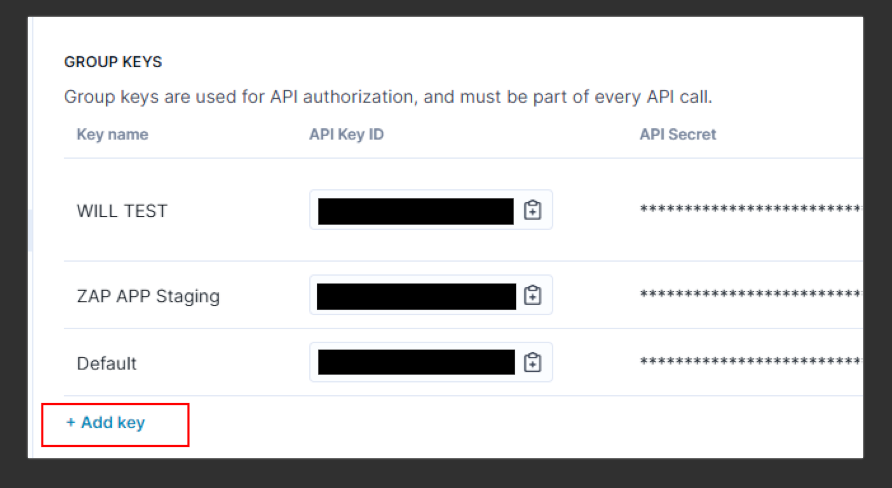
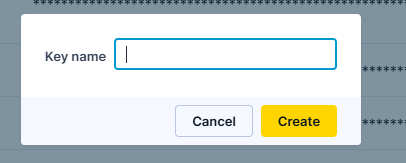
4. Add a new API key and give it a name.
5. Click `Create`, then copy:
* API key ID
* API secret (shown once)
6. Confirm the API key has permissions to set/create events.
7. Copy the project token, project ID (if shown), and API base URL from the same screen.
### Connect Bloomreach in the ZAP-POST app
1. Sign in to ZAP-POST: .
2. From the Dashboard, open `Integrations`.
3. Select the Bloomreach tile.
4. Enter the Bloomreach values you gathered earlier. Each field matches the label shown in Bloomreach API access settings.
5. Click `Connect`. ZAP-POST tests the credentials and confirms the connection.
{% hint style="info" %}
To disable the integration later, click `Disconnect` on the same screen.
{% endhint %}
---
# Agent Instructions
This documentation is published with GitBook. GitBook is the documentation platform designed so that both humans and AI agents can read, navigate, and reason over technical content effectively. Learn more at gitbook.com.
## Querying This Documentation
If you need additional information that is not directly available in this page, you can query the documentation dynamically by asking a question.
Perform an HTTP GET request on the current page URL with the `ask` query parameter, and the optional `goal` query parameter:
```
GET https://userguide.zappost.com/zap-integrations/zap-post-integrations/bloomreach/populating-bloomreach-with-zap-post-events/installation-guide.md?ask=&goal=
```
`ask` is the immediate question: it should be specific, self-contained, and written in natural language.
`goal` is optional and describes the broader end goal you are ultimately trying to accomplish on behalf of the user. GitBook uses it to tailor the answer towards what is most useful for that goal.
The response will contain a direct answer to the question and relevant excerpts and sources from the documentation.
Use this mechanism when the answer is not explicitly present in the current page, you need clarification or additional context, or you want to retrieve related documentation sections.